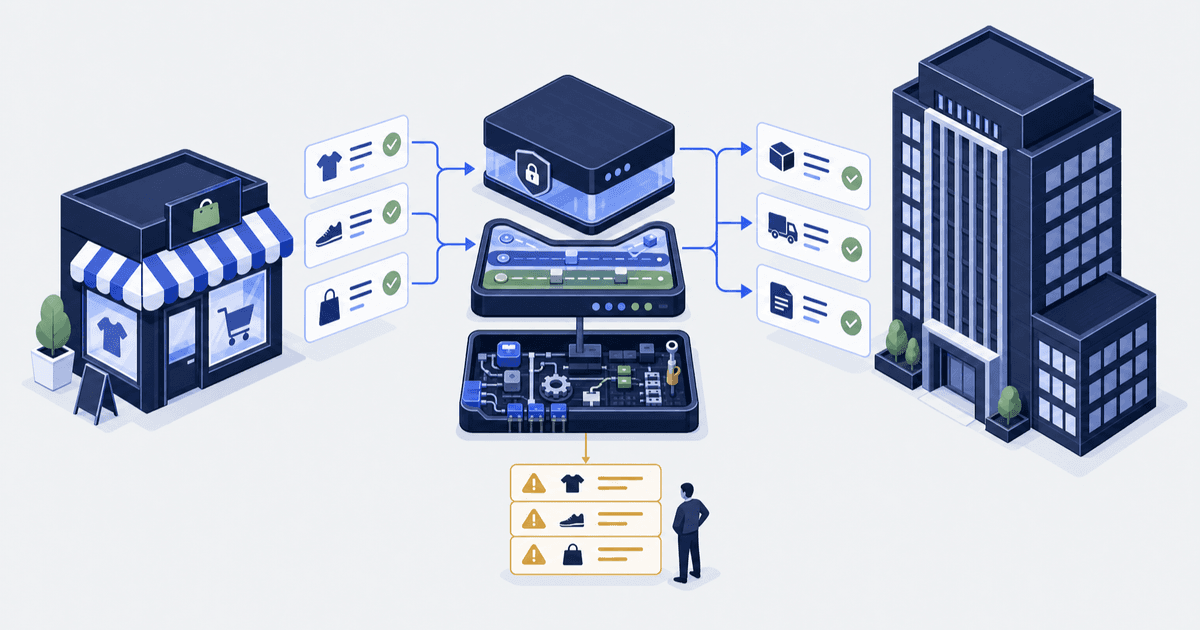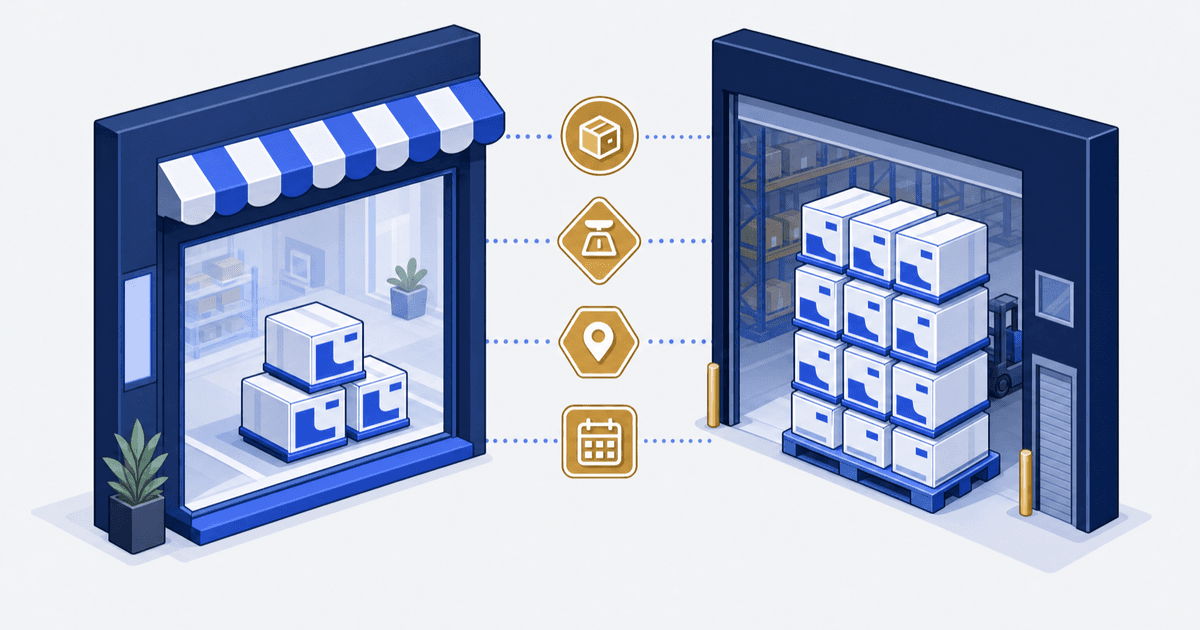

For example, your warehouse manager counts 42 units on the shelf. Shopify says 31. Someone has already asked whether the sync is broken. The fastest way to make that question unanswerable is to push the feed again.
The short answer. Four causes explain nearly every real stock gap. The two numbers describe different states, sit at different locations, were true at different moments, or two systems write one field. Work through them in that order before touching sync speed. Shopify keeps only 180 days of adjustment history, so pull the evidence first.
| What to pin down | Shopify's documented fact | What your store records |
|---|---|---|
| States the Admin API (the door apps use to read and write store data) names | 8: incoming, on hand, available, committed, reserved, damaged, safety stock, quality control | 1 named writer per item, location and state |
| Who can write committed | Shopify only. The Admin API cannot adjust or move it | Model your own holds as an unavailable state |
| Changes that fire no webhook (a message Shopify sends when something changes) | committed, reserved, damaged, safety stock, quality control | 1 timed check against updated timestamps |
| Adjustment history kept | 180 days per variant | 1 export cadence for anything older |
| Stock across locations | Each location's stock is separate and cannot be pooled | Which locations ship to which zones |
Sources: quantities and states, inventory management apps, adjustment history, multi-managed inventory.
We build and run the systems behind Shopify stores, including Shopify integrations and custom apps. This guide is for the operator who owns the store after launch.
Who this is for, and who it is not for. This is for you if Shopify shares stock numbers with a second system. That could be an ERP, a WMS, a 3PL, Shopify POS, a marketplace link or a supplier feed. An ERP is the system that holds your books. A WMS (warehouse management system) is the software that runs the warehouse floor. A 3PL is a third-party company that stores and ships your orders. POS is Shopify’s point-of-sale system for physical shops. A supplier feed is a file your supplier sends with its stock. It is not for you if you want an app pick. A storefront scan cannot answer it either. That scan sees a product page, not the change log behind it.
Get four things first. Shopify admin access with stock permissions. The other system’s log of what it sent. Your bundle and returns rules. And one named person per system who can say what it wrote, and when.
Cause 1: the two numbers usually describe different states
The test is almost always a warehouse count against Shopify’s available number. Those two are meant to differ. Shopify defines on hand as the units at a location, and available as what a buyer can still buy.
The Admin API is the door apps use to read and write store data. Its quantity states include available, committed, reserved, damaged, safety stock and quality control. The last four are the unavailable states. On hand and incoming complete the eight.
| State | What it counts | Usual writer |
|---|---|---|
| On hand | Every unit at that location | Receiving, stock counts, apps that set on hand |
| Available | What a buyer can still buy | Shopify, as orders come in and ship, plus any app |
| Committed | Units held for orders not yet shipped | Shopify only |
| Reserved, damaged, safety stock, quality control | Stocked, but not sellable. Safety stock is a buffer you hold back | Apps and staff, through adjust and move calls |
| Incoming | On the way in. Not sellable until booked in | Purchasing, receiving, transfers, apps |
Two details cause most false alarms. The admin groups the unavailable states under one label, so a number that looks lost is often just safety stock. And Shopify owns committed itself, through orders, fulfilment and draft order holds. If your ERP has its own idea of a hold, model it as one of the unavailable states.
Agree the definition before you call it a failure. Ask each system which state its number stands for. A warehouse on-hand count and a Shopify available count can differ by exactly the committed and unavailable units. Both can still be right.
Cause 2: a right number in the wrong place still reads as sold out
Shopify tracks stock per location. A location is any place you sell, stock or ship from. Dropshipping apps and 3PLs show up as locations too. A dropshipping app sends orders straight to a supplier. Each location’s stock is independent and cannot be pooled (multi-managed inventory).
That means a store-wide total can be right while the page still says sold out. Customers can only complete checkout for products in stock at locations that deliver to their shipping zone. Stock outside that zone is real stock the buyer cannot reach.
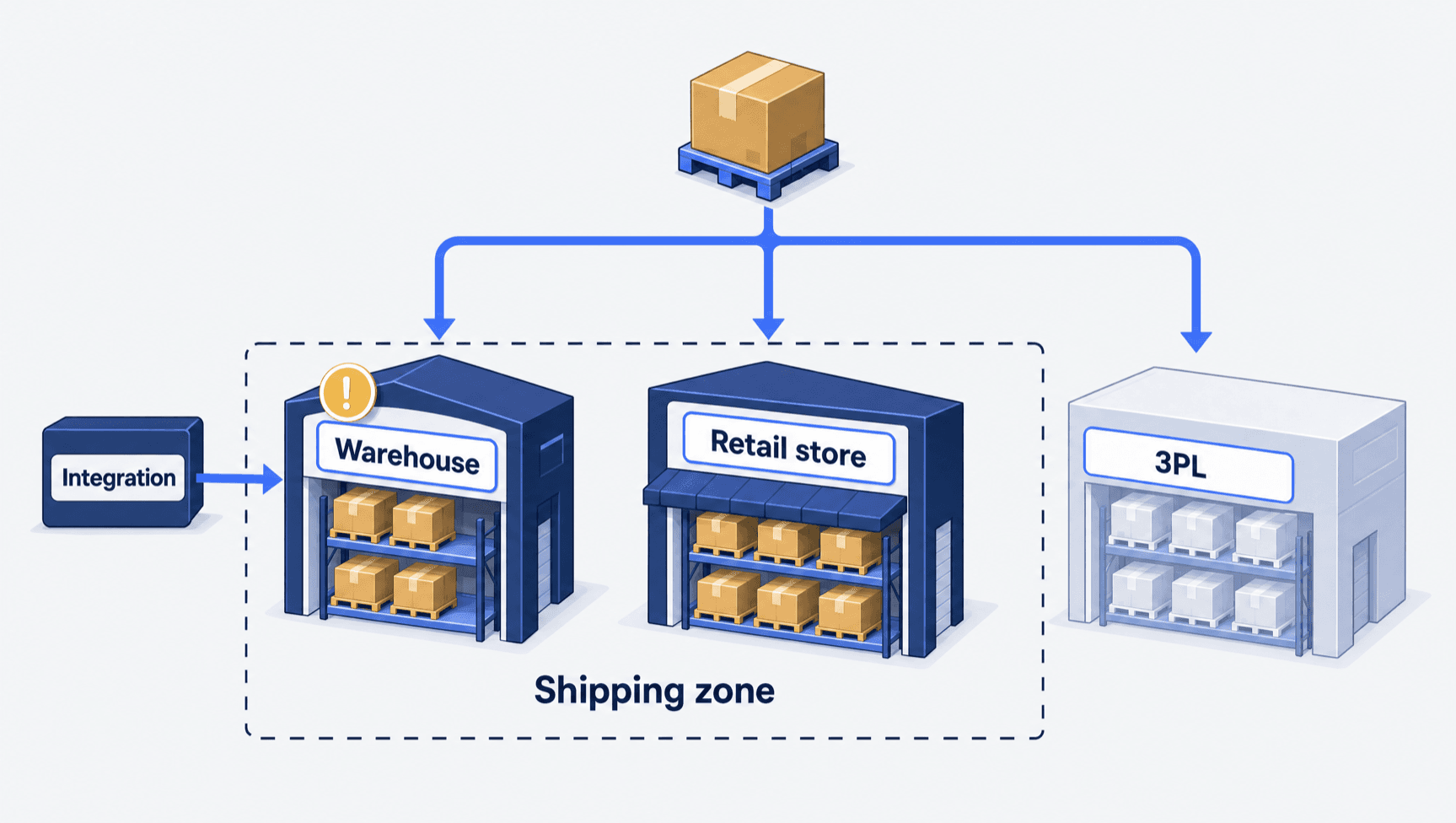
Routing is the other half. Shopify says “if a location has enough inventory to fulfill an entire order, then the order is assigned to that location”. If not, “it’s split across multiple locations or the highest-priority location oversells the product” (order routing).
So check the location first. Read the stock level for that item at that location, not the product total. That row is the InventoryLevel object in the Admin API: 1 item at 1 location, with its states and the time of the last write. Write to the wrong location id and no retry will fix the page.
Cause 3: timing gaps that are not failures
Webhook coverage. A webhook is a message Shopify sends your system when something changes. Shopify exposes inventory webhook topics for items and levels. But changes to committed, reserved, damaged, safety stock and quality control states “don’t trigger webhooks” (inventory management apps). Listen only to level updates and you miss those moves.
Delivery behaviour. Shopify says “webhook delivery isn’t always guaranteed” and does not guarantee ordering (webhooks). It asks you to drop repeats using the webhook id header and to run reconciliation jobs. A reconciliation job is a check on a timer that reads both systems and fixes what drifted. Treat arrival order as business order, and an older count can land last and win.
Your own batch window. Say the other system pushes one full file every 15 minutes. Then a 15 minute gap is the design, not a fault.
Write down the expected staleness for each flow. Staleness is how old a number may be. If nobody has agreed it, every gap looks like a bug. Then no fix can be signed off as done.
Cause 4: two writers on one field take longest to settle
The hardest gaps are the ones where nothing failed. Two systems both wrote a valid number. The second one landed last.
This hits available more than any other state. A warehouse system pushes an absolute value on a timer. An absolute value sets the count. A delta adds to it or takes from it. A second app writes available too. A staff member fixes a count by hand. POS staff run a count, and quick count changes sync on their own into the admin.
Each change is valid. Together they are a race. The write that loses is often the fix someone made that morning.
Shopify gives you a defence. The inventorySetQuantities mutation, an API call that writes rather than reads, sets absolute values and supports compare and set. You pass the count you expect, and the write only lands if it still matches. Shopify says that opting out with ignoreCompareQuantity should be reserved for the system that is the source of truth for quantities.
The rule is easy to say and unpopular to apply. Name 1 writer per item, per location, per state. Everything else reads. Where you cannot, use compare and set, so a stale write fails loudly. When one of the writers is a product data tool, a Shopify PIM integration is where that field gets a single owner.
A “success” status is not proof either. At Container One, we inherited a sync app that marked jobs finished even when Shopify had rejected them. The missing products traced back to errors the code threw away.
Diagnose in this order, and stop where it explains
- Freeze one case: one variant (one buyable version of a product, such as one size), one location, one moment. Write down both numbers, and the state each one stands for.
- Compare like for like. Available against sellable, or on hand against on hand. Rebuild on hand as available plus committed plus the unavailable states.
- Pull the adjustment history. Shopify keeps 180 days of it per variant. Each line gives the date, the activity, a “Created by” name, and the new values. Older changes sit in the Inventory adjustment changes report.
- Read the created by column. It names the staff member, app or sales channel behind each change. In a row about ownership, that column ends the argument.
- Query the stock level for that item and location. Ask for available, committed and on_hand by name. Read
updatedAtand compare it to the other system’s last write. - Pull the other system’s log. Note what it sent and when. Note which location id (the code Shopify gives each location) it wrote to, and whether it sent an absolute value or a delta. Note what came back. A 200 response is not proof the value stuck.
- Classify before fixing. Name which of the 4 causes the evidence supports.
Three cases cut across all four causes. A bundle means 1 sale takes units from several items, so both systems can be right about different items. An item not stocked at a location has no level there at all. A refund puts stock back on one side before the other hears.
Do not re-push the feed first. A manual resync writes over the trail that names the writer. It hides the cause until it comes back.
What breaks, and who owns it
The objection is that this is too slow while the store is overselling. Guessing is slower. Three things break again and again.
Nobody agreed the freshness target. Set one per flow, then measure the real delay.
The overselling policy was inherited, not chosen. The continue selling when out of stock setting lets a variant sell below zero. Shopify notes it does not apply in Shopify POS, where staff can sell below zero anyway and are warned first. For a buffer, use safety stock instead of shrinking available.
Two writers were never cut to one. Turn on compare and set. Then remove the second writer.
Turn the classification into a decision
Once you know the cause, the repair is usually a decision, not code. Which system owns this state at this location. How fresh the number has to be. What happens when two writes collide. Our Shopify ERP integration guide turns those into acceptance tests. The Shopify and NetSuite guide works the same questions for that pairing.
Common questions
Why does Shopify show fewer units than my warehouse?
Almost always because you are comparing different states. A warehouse count is closest to Shopify’s on hand, which takes in committed and unavailable units. Shopify’s available is only what a buyer can still buy. Rebuild on hand as available plus committed plus the unavailable states.
Can an app write Shopify's committed quantity?
No. Shopify owns committed itself, through order creation, fulfilment and draft order holds. The GraphQL Admin API cannot adjust or move it. If a second system needs its own idea of a hold, model it as one of the unavailable states, such as reserved or safety stock.
Does Shopify send a webhook every time stock changes?
No. Shopify says changes to committed, reserved, damaged, safety stock and quality control states do not trigger webhooks. Its guidance also says delivery and arrival order are not guaranteed. So run a check on a timer against updated timestamps, not only the event stream.
How do I stop two systems overwriting each other's Shopify inventory?
Name 1 writer per item, per location, per state, and make everything else read. Where you cannot, use compare and set on inventorySetQuantities with the expected count in changeFromQuantity. A stale write then fails instead of winning.
How far back can I see who changed a Shopify inventory quantity?
The admin keeps 180 days of adjustment history per variant. It carries a Created by column naming the staff member, app or sales channel. Older changes live in the Inventory adjustment changes report. Export before the 180 day window closes on a dispute.
Facts checked October 2026. Shopify pages were re-read on 5 October 2026. Re-check them before you build, and by 5 November 2026 at the latest. Sources: inventory states, quantities and states, locations management, multi-managed inventory, fulfillable inventory, order routing, InventoryLevel, inventory management apps, webhooks, inventorySetQuantities, adjustment history, POS quick count, continue selling when out of stock.